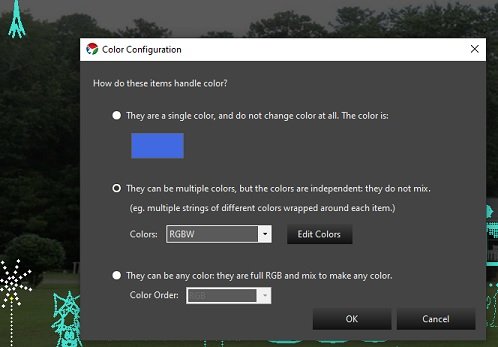
I have a question on how the Vixen display looks when using Multiple Independent Colors. I have 5 mini-trees each wrapped with Red, Blue, Green & White strings. I used to draw all these strings in the Vixen Preview so I would have 20 mini-trees (5 trees with 4 different colored strings). In sequencer it should show all these 20 trees and I would just do it this way. But this year I decided to try using the Multiple Independent Colors and only draw 5 trees in the preview. Actually it worked great and was easier to sequence. But the display didn't look very good, for example if I had all the mini-tree channels ON the trees looked sort of white on the preview with some other colors around the edges. But before when I drew all 20 trees it looked much more colorful and more like the actual trees in the yard.
So my question is there something I could have changed to make the mini-trees in the preview look better using Multiple Independent Colors and if not cold this be improved in the program to do that. It really helps me to sequence if the preview is as realistic as possible. I have a few other display comments that I will put in another post. Tx!
No, I just used a light string to draw them. It’s not a mega tree so I wouldn’t have thought to use the mega tree for that… it’s just light strands wrapped around a cone wireframe.
I have numerous cone trees in my display that are made out of wire. I use the mega-tree to represent them in the preview. The mega-tree shape does a good job of the cone shape but the lights will run up and down. That aspect may not meet your expectations. For me it is good enough. You might try the mega-tree and share your thoughts on the look. Another question are you using the OpenGL Preview or the default preview?
The OpenGL preview has better zooming and allows you to move the viewpoint or camera. It has been years since I have used the default preview so I don't know if it will have any effect on this discussion. I created a sequence with one of my little trees, and configured it to display all the colors you mentioned. I have to admit I don't think it looks so great. I reduced the tree to 8 strands of lights with 20 lights per string. I still didn't think it looked great. The code for the OpenGL preview adds a small X or Y delta for each color applied.
Next I changed the code. So instead of trying to display all the lights in each color, I did one bulb in Red, Blue, Green, and White. The second image is that same logic but with 16 strands of lights with 50 lights per strand.
harpsterwrote:
No, I just used a light string to draw them. It’s not a mega tree so I wouldn’t have thought to use the mega tree for that… it’s just light strands wrapped around a cone wireframe.
Actually, you can! Just resize the tree to fit what you need. When you draw the trees in the preview window and start to set it up just rename it "MiniTree."
The next thing it will ask is to set up a dimming curve, select No. Then a new dialoged box will appear called "Color Configuration," select the middle button and set the colors to RGBW (Red, Green, Blue, White) and select ok. It will then add the four colors to your tree.
Back in your "Display Setup" window you can verify it. See below, each of the white dots at the end of the color breakdown bubble is a color in the order you selected R,G,B,W.
When you patch the element, it will do it automatically in the order specified.
This is how I do it, you draw the element once, set the color handling and the patch it and it works!
Hope this helps.
BillW
JCBwrote:
The OpenGL preview has better zooming and allows you to move the viewpoint or camera. It has been years since I have used the default preview so I don't know if it will have any effect on this discussion. I created a sequence with one of my little trees, and configured it to display all the colors you mentioned. I have to admit I don't think it looks so great. I reduced the tree to 8 strands of lights with 20 lights per string. I still didn't think it looked great. The code for the OpenGL preview adds a small X or Y delta for each color applied.
Next I changed the code. So instead of trying to display all the lights in each color, I did one bulb in Red, Blue, Green, and White. The second image is that same logic but with 16 strands of lights with 50 lights per strand.
Thanks for doing that, that’s very interesting! I’m going to play around with it and also look again at how I used to do it in case it’s not how I remember. I’m guessing that when drawing the Mini-trees I didn’t put them exactly on top of each other so maybe that’s why he colors popped more. I’ll post back after I take a closer look at it.